If you’re using Fusion 360 and have ever struggled to combine bodies, welcome to the club. Whether it’s merging components or dealing with assemblies, combining bodies can feel like wrangling a wild beast. 😡 But it doesn’t have to be that way!
We’re cutting through the jargon to show you how to combine bodies in Fusion 360 without losing your mind—or your project. From basic joining to complex assemblies, we’ve got you covered.
💡 Why Combine Bodies in Fusion 360?
Combining bodies is essential when working with complex models or assemblies. Instead of dealing with multiple disconnected parts, combining them makes your design more manageable and efficient.
Benefits of Combining Bodies:
- Streamlined Assembly: Reduce clutter by grouping related parts.
- Efficient Modeling: Simplifies transformations and constraints.
- Better Rendering: Make your designs look more polished and professional.
- Easier Exporting: Fewer parts mean fewer headaches when exporting.
Common Scenarios for Combining Bodies:
- Creating a single solid from multiple parts.
- Merging parts for 3D printing.
- Simplifying CNC toolpaths by combining similar shapes.
🛠️ How to Combine Bodies Step by Step
Combining bodies in Fusion 360 is easier than it sounds—if you know the right steps. Here’s how to do it:
1. Open Your Design
Make sure your project is loaded in Fusion 360 and that your components are clearly defined.
2. Go to the “Solid” Tab
Navigate to the Solid tab where most of your modeling tools are located.
3. Select the “Combine” Tool
Click on the Modify dropdown and choose Combine. This will open the Combine dialog box.
4. Set the Operation Type
- Join: Merges two or more bodies into one.
- Cut: Subtracts one body from another.
- Intersect: Keeps only the overlapping volume.
5. Select Target and Tool Bodies
- Click on the body you want to keep as the Target Body.
- Choose one or more bodies as Tool Bodies that will be merged or cut.
6. Apply and Inspect
Click OK and check your model to ensure the bodies combined correctly.
🚩 Troubleshooting Common Issues
Even when you follow the steps to a T, Fusion 360 sometimes decides to act up. Here’s how to handle common problems:
Problem: Missing Geometry After Combining
- Solution: Check if the Combine operation was set to Cut instead of Join.
Problem: Unresponsive Combine Command
- Solution: Restart Fusion 360 and make sure your file isn’t corrupted.
Problem: Geometry Disappears
- Solution: Double-check that both bodies are visible and not hidden in the component tree.
🚀 Tips for Successful Combining
- Save Your Work Before Combining: You can’t undo everything!
- Use Component Groups: It’s easier to combine groups of components than individual bodies.
- Simulation First: Run a quick simulation to ensure the combined body doesn’t mess up the final outcome.
💡 Real-Life Scenario: Combining Bodies for CNC Milling
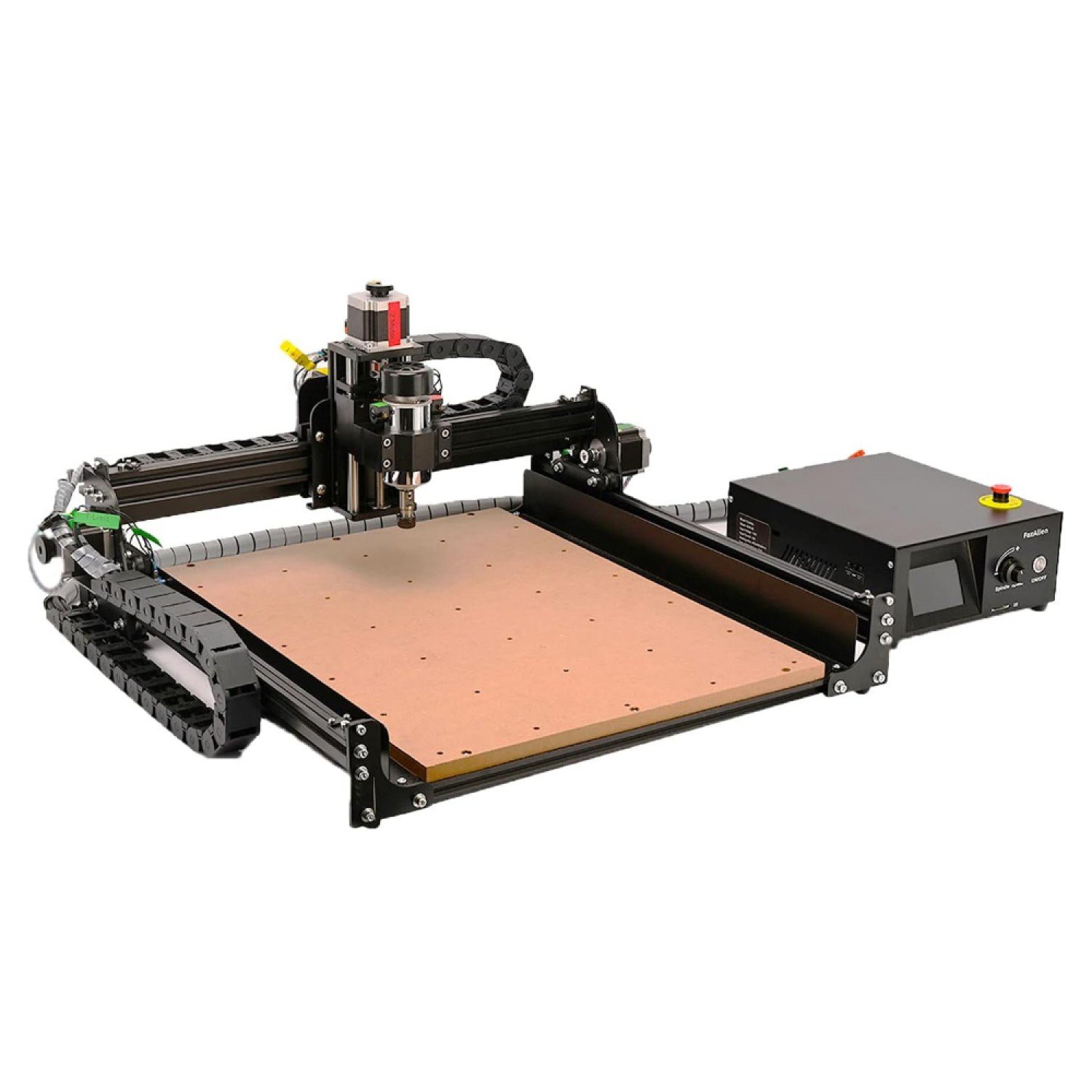
Imagine you’re designing a multi-part assembly for a custom CNC router project. You’ve created individual parts like brackets, supports, and the frame itself. Combining them into a single solid body can simplify the manufacturing process and reduce errors when generating GCode.
Steps:
- Combine the frame and support structures using the Join operation.
- Use Cut to create bolt holes and mounting points.
- Check the final model for accuracy and export the file.
🔗 Don’t waste time with messy files! Get high-quality CNC-ready designs from Agilemaking’s CNC Shop.
💬 Final Thoughts
Combining bodies in Fusion 360 doesn’t have to be a headache. With the right approach and a few tricks up your sleeve, you’ll be merging like a pro in no time. Got more Fusion 360 tips? Share them in the comments below!